> For the complete documentation index, see [llms.txt](https://guides.transcript.study/llms.txt). Markdown versions of documentation pages are available by appending `.md` to page URLs; this page is available as [Markdown](https://guides.transcript.study/transcript-extension/home/ai-chat.md).
# AI Chat
Meet your AI tutor - swiftly access answers, expand knowledge, and stay focused on tasks with ease.
{% tabs %}
{% tab title="Accessing AI Chat" %}
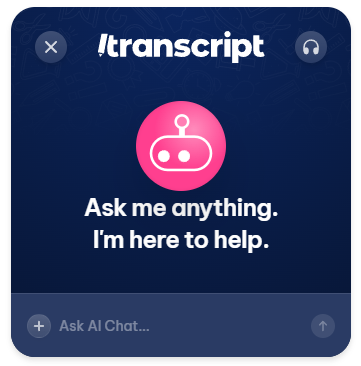
By opening AI Chat, a pop-up window will appear where you can conversate with our AI.
Unlock endless possibilities by exploring any topic, including complex math problems, and asking for clarifications. You can even use voice chat for a more interactive experience. Enjoy personalized AI responses tailored to your study sets, creating a customized learning experience just for you.
{% endtab %}
{% tab title="Talking To Study Set" %}
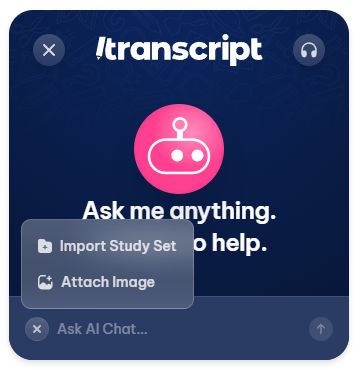
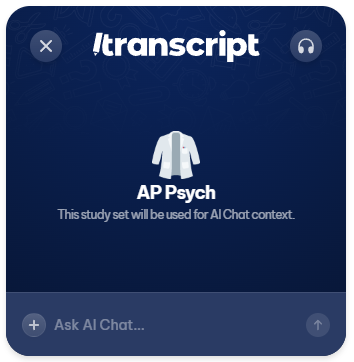
For context-aware assistance on your material, click the "Import Study Set" button found in the plus menu at the bottom left of the window. After adding your study set, you can begin interacting with it directly!
{% endtab %}
{% tab title="AI Voice Chat" %}
Experience a more natural interaction with our AI by using your voice, making it easier and more accessible for those who prefer or need audio communication.
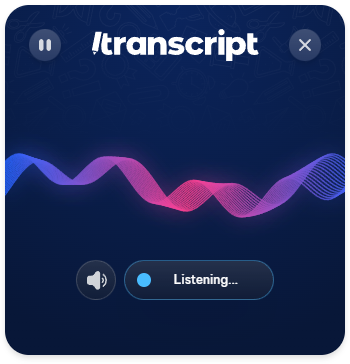
* **Start a Conversation:** Click the **headphones** button and begin speaking.
* **Status Indicator:** The "Listening..." message confirms your voice input is being captured. After you finish speaking, the system will process your input and respond accordingly.
* **Pause or Stop:** Click the **Pause** button in the top left corner to temporarily stop listening. To end the voice input session, click the **X** in the top right corner.
* **Adjust Volume:** Click the **Speaker** icon to adjust the volume as needed.
{% endtab %}
{% endtabs %}
---
# Agent Instructions
This documentation is published with GitBook. GitBook is the documentation platform designed so that both humans and AI agents can read, navigate, and reason over technical content effectively. Learn more at gitbook.com.
## Querying This Documentation
If you need additional information that is not directly available in this page, you can query the documentation by asking a question.
Perform an HTTP GET request on the following URL with the `ask` and `goal` query parameters:
```
GET https://guides.transcript.study/transcript-extension/home/ai-chat.md?ask=&goal=
```
`ask` is the immediate question: it should be specific, self-contained, and written in natural language.
`goal` is what the user is ultimately trying to achieve, the reason they need the answer. Sharing it helps GitBook give you a better, more relevant answer. A goal is most helpful when it describes the outcome the user wants rather than restating the question. For example, with `ask=how do I create an API token`, a goal like `automate deployments from our CI pipeline` lets GitBook tailor the answer to that use case.
The response will contain a direct answer to the question and relevant excerpts and sources from the documentation.
Use this mechanism when the answer is not explicitly present in the current page, you need clarification or additional context, or you want to retrieve related documentation sections.